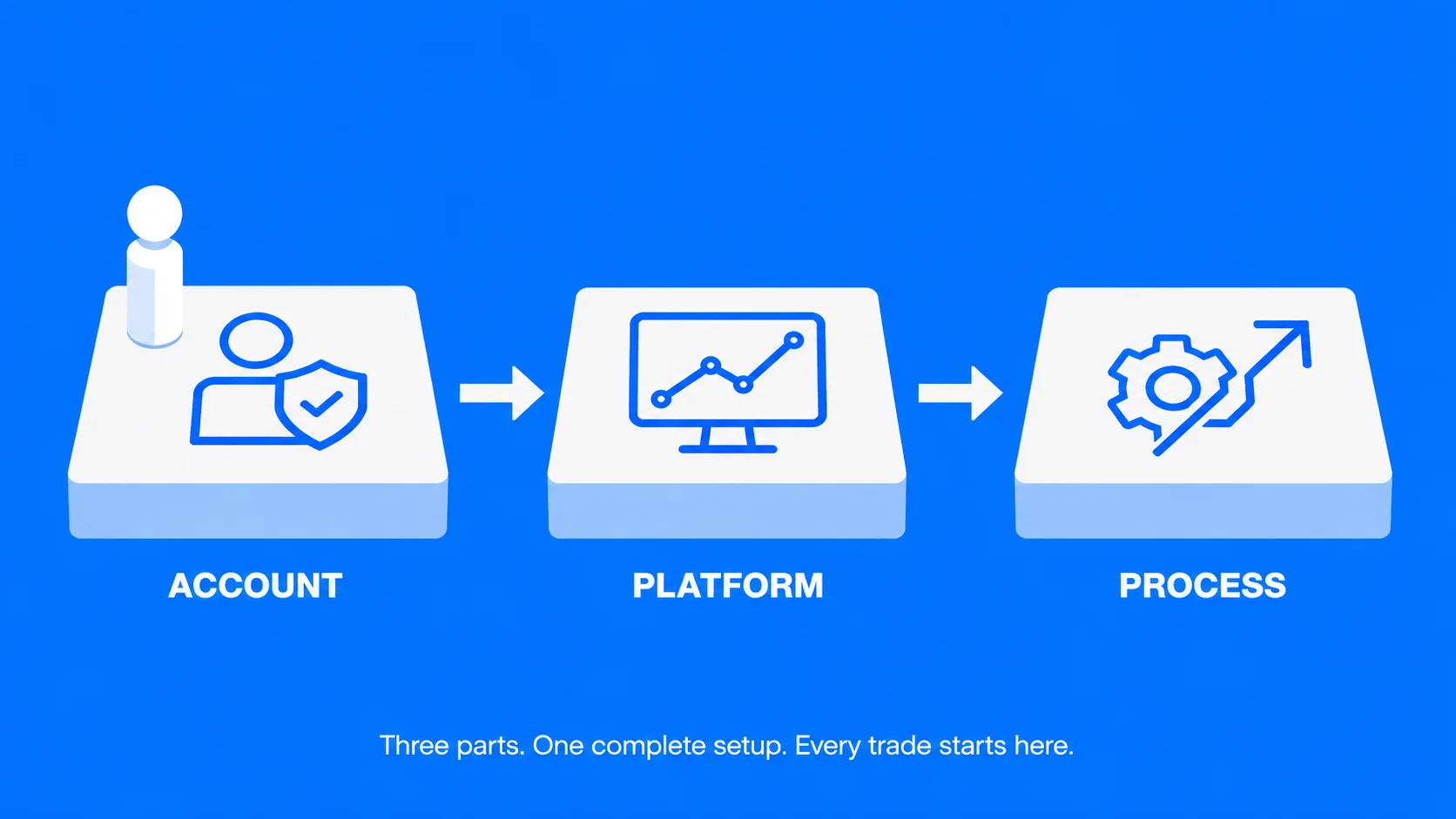
How to set up a trading account
A trading account is the broker-hosted ledger that holds deposits, tracks open positions, and routes orders to the market. UEXO’s trading account provides single-login access to CFDs across all five asset classes, removing the need for separate accounts per instrument.
Which UEXO account type matches your capital and trading style?
UEXO offers three account types with different cost structures and minimum deposits. The choice depends on deposit size and how often a trader expects to trade.
| Account | Min deposit | Spreads from | Commission | Phone support |
| Standard | $50 | 1.6 pips | None | No |
| Pro | $2,500 | 0.8 pips | None | Yes |
| ECN | $10,000 | 0.0 pips | $4 per round-turn* | Yes |
*ECN commission does not apply to crypto or shares.
All three account types include copy trading access. Negative Balance Protection and swap-free options apply subject to eligibility, account type, and the regulatory entity serving your region.
Pro and ECN add Asset IQ, Analysis IQ, and a dedicated account representative. ECN adds the Research Terminal. Standard is the entry point for new traders; Pro fits active traders who want tighter spreads without commission; ECN suits high-volume traders who prefer raw spreads with a transparent fee.
To select right trading account type please read our detailed guide on UEXO Account Types
How does account opening and funding work?
UEXO uses a three-step onboarding: register, fund, verify.
- Register the account through UEXO’s client portal, selecting the account type and base currency (USD or EUR).
- Fund the account using card, wire transfer, Skrill, Neteller, or crypto check our detailed guidelines on deposit and withdrawals
- Complete KYC by uploading identification and proof of address. KYC verification is required to withdraw funds and unlock full account features.
Practice trading is available through a demo account on either MT4 or MT5. A demo runs on live market prices with virtual capital, removing financial risk during the learning phase.
How to choose a trading platform
A trading platform is the software that displays prices, executes orders, and hosts chart analysis. UEXO supports two platforms from MetaQuotes: MetaTrader 4 (MT4) and MetaTrader 5 (MT5). Both platforms work with all three UEXO account types.
MetaTrader 4 (MT4)
MT4 is the most widely deployed forex and CFD platform, used by retail traders globally since 2005. With UEXO, MT4 provides:
- Forex and CFD trading covering major, minor, and exotic currency pairs plus indices and commodities from one platform.
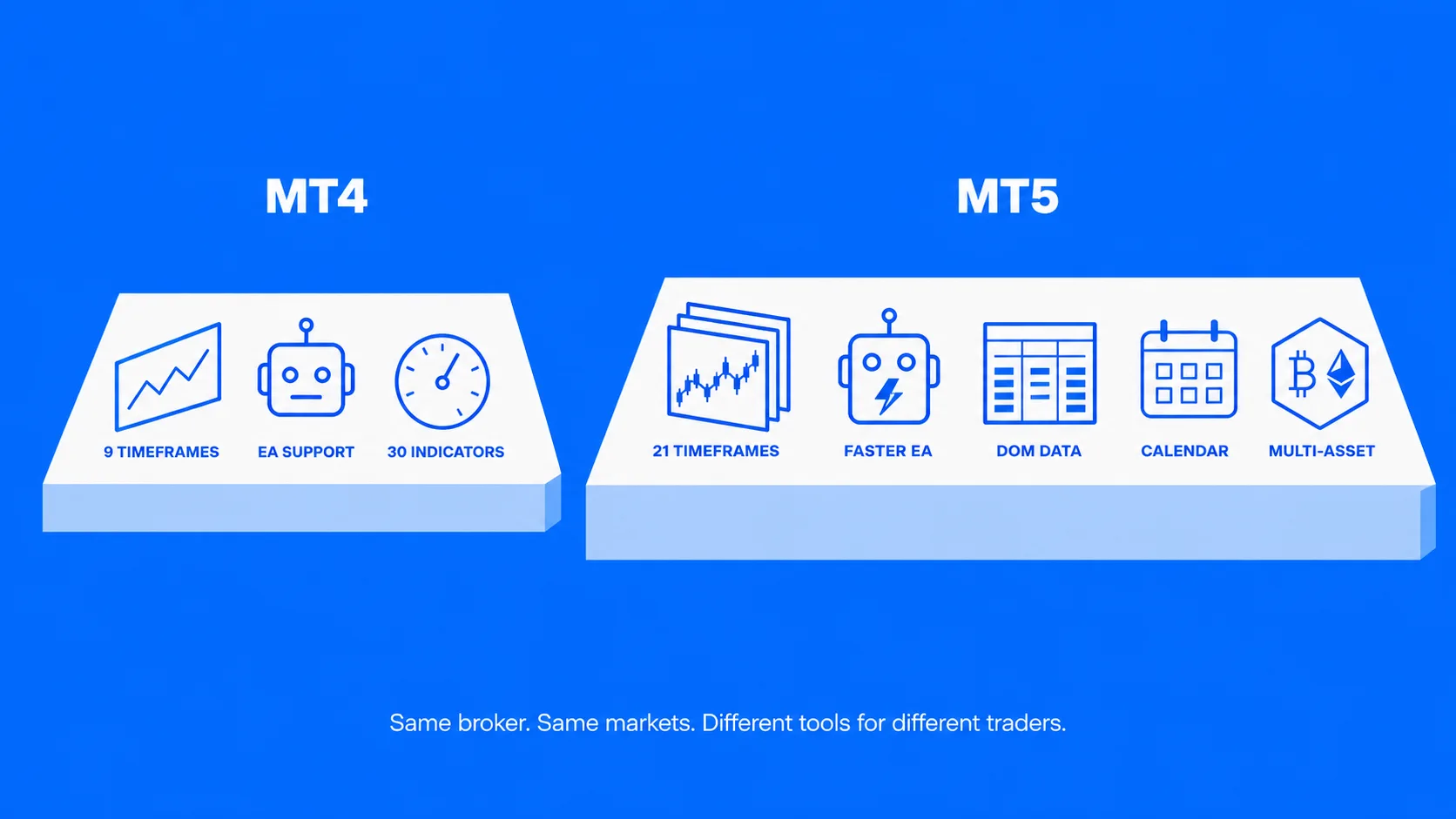
- Interactive charting with 9 timeframes (M1 to MN), 30 built-in technical indicators, and 23 analytical drawing tools.
- Expert Advisor (EA) support via the MQL4 language, a built-in strategy tester, and one-click trading for algorithmic setups.
MT4 is accessible three ways: desktop download (Windows, macOS), mobile app (iOS, Android), and browser-based WebTrader requiring no installation. Access details are on the UEXO MT4 page.
MetaTrader 5 (MT5)
MT5 is the next-generation MetaQuotes platform, designed for multi-asset trading and faster strategy testing. With UEXO, MT5 provides:
- Multi-asset trading across forex, indices, commodities, stocks, and crypto CFDs from one account.
- Advanced charting with 21 timeframes, 38 built-in indicators, 44 graphical objects, and 24 analytical tools.
- Built-in Economic Calendar and Depth of Market (DOM) for fundamental and order-flow analysis.
- 6 order types with both hedging and netting account modes.
- Expert Advisor support via MQL5 with a multi-threaded strategy tester for faster backtesting across multiple instruments.
MT5 is accessible three ways: desktop download (Windows, macOS, Linux), mobile app (iOS, Android), and browser-based WebTrader requiring no installation. MT5 fits traders who need stocks access, more indicators, or faster automation. Access details are on the UEXO MT5 page.
In order to make right selection read our detailed comparison between MT4 vs MT5
Which extra tools complement the platform?
Beyond MT4 and MT5, UEXO integrates two tool layers into the trading environment.
Copy Trading lets an account automatically mirror trades from a selected strategy provider. The follower allocates capital, selects a provider from the leaderboard, and positions replicate in real time. The follower retains the ability to pause or stop copying at any point. UEXO’s copy trading platform hosts strategy selection and performance data.
Acuity Trading intelligence provides AI-powered signals, market sentiment via NewsIQ, an Economic Calendar, a Corporate Calendar, and Asset Overview analytics. Acuity tools are accessible inside MT4, MT5, and the Client Portal with no extra setup. UEXO’s trading signals page details each Acuity module.
How to use the trading platform
The trading workflow on MT5 follows five steps: log in, explore markets, place an order, manage the position, and use support when needed. The logic transfers directly to MT4 with minor menu differences.
Step 1: Log in and connect
Open MT5 desktop, mobile, or WebTrader. On desktop, select “File > Login to Trade Account” and enter the login number, password, and UEXO server provided in the account confirmation email. WebTrader and mobile use the same credentials through their respective login screens. After connection, the Terminal window displays balance, equity, free margin, and any open positions.
Step 2: Explore markets and charts
Open Market Watch (Ctrl+M) to view available instruments grouped by asset class.
Right-click an instrument and select “Chart Window” to open a price chart. Pick a timeframe matching the intended trade horizon – M15 or H1 for intraday, H4 or D1 for swing trades – and add indicators such as moving averages or RSI from the Navigator panel.
Step 3: Place the first order
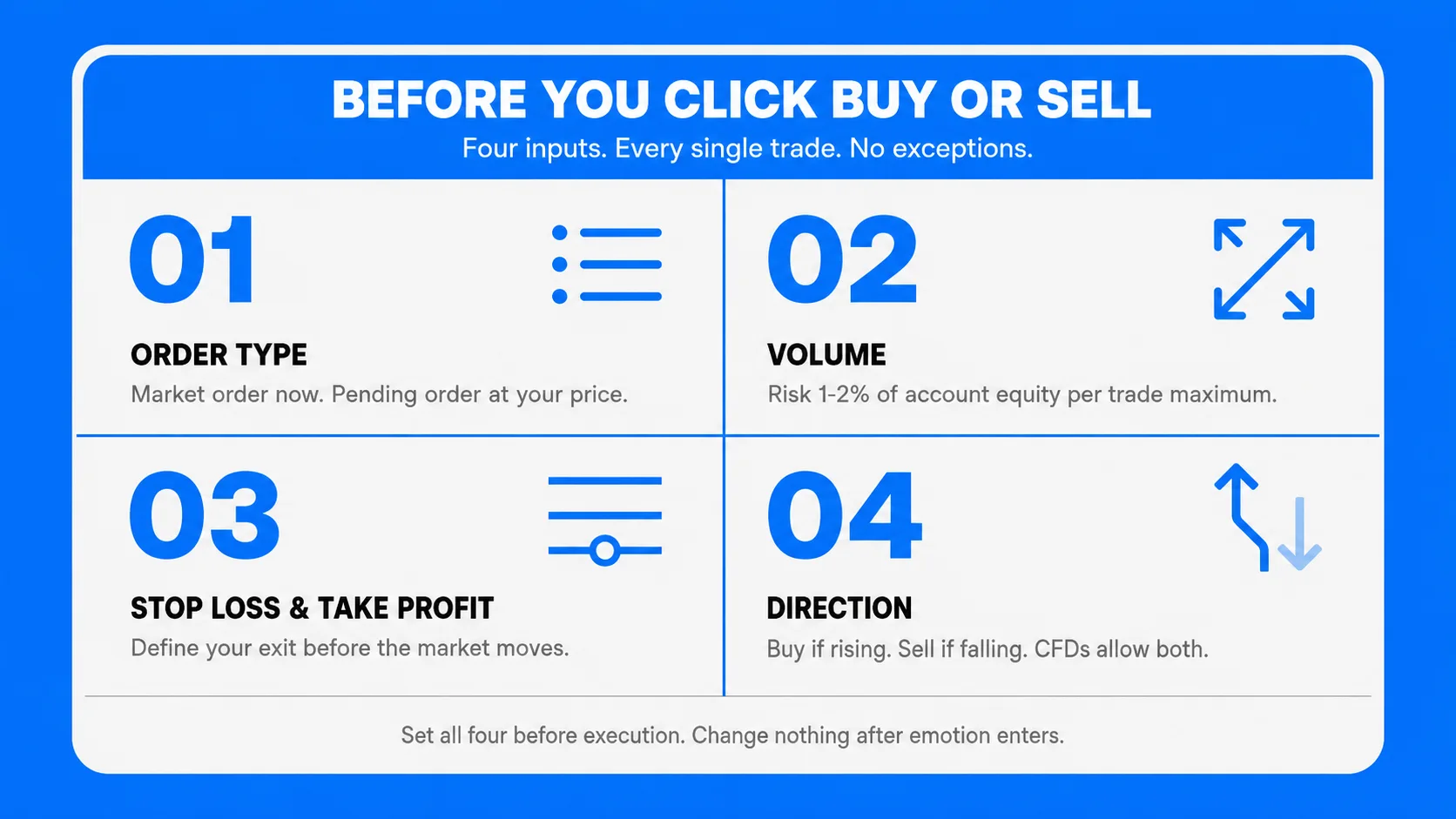
Open the order ticket with F9 or by clicking “New Order”. The ticket requires four inputs:
- Order type. Market orders execute at the current price. Pending orders (Buy Limit, Sell Limit, Buy Stop, Sell Stop) execute only when price reaches a specified level.
- Volume. Lot size determines position size. Keep risk per trade below 1-2% of account equity, especially during the learning phase.
- Stop loss and take profit. Both levels close the position automatically when price hits them, defining the maximum loss and target profit before entry.
- Direction. Buy if expecting price to rise, sell if expecting price to fall. CFDs allow both directions on the same instrument.
The position appears immediately in the Trade tab of the Terminal window once executed.
Step 4: Monitor and manage the trade
Open positions show floating profit or loss in real time inside the Terminal window. Adjust stop loss or take profit by right-clicking the position and selecting “Modify or Delete Order”. Common adjustments include moving stop loss to break-even after the trade reaches a defined profit threshold. Close positions manually with the X button or let stop loss and take profit trigger the exit. Closed trades archive to the History tab for performance review.
Step 5: Use support when needed
UEXO support coverage depends on account type. Standard accounts get email and live chat. Pro and ECN accounts add phone support and a dedicated representative. Contact details are listed on the UEXO contact page.
What happens after the first trade?
The first trade marks the start of an iterative process: review the closed trade, identify what worked, refine the setup, and repeat. A complete setup combined with disciplined risk management and demo practice before live execution forms the foundation of any consistent trading approach. Open a UEXO live or demo account to apply this setup against real market conditions.